You can delete your account from the app under Settings → Delete Account, or contact support for assistance.
My Guardian Link is designed to support you in urgent situations when calling or speaking may be difficult. It delivers clarity, accountability, and peace of mind through trusted contacts, personal coordinator support, and documented records.
Helps alert 911 when needed.
Activity is documented for accountability.
Frequently Asked Questions
Is this a replacement for 911?
No. It is designed to support 911 when you cannot call, speak, or explain clearly.
Who receives my signal?
Your trusted contacts and a personal coordinator.
What does the coordinator do?
The coordinator reviews the information, attempts to assess the situation, and can alert 911 when emergency response is needed.
Does it work if I cannot talk?
Yes. The system is designed for silent or limited-action situations.
Is my location sent?
Yes, the system sends GPS location when available.
Can my family be notified?
Yes, trusted contacts can receive the urgent signal.
Is there a record?
Yes. Incident activity can be time-stamped and documented for accountability.
Who should use this?
Anyone who may need help when they cannot speak, move, call, or explain clearly.
does not replace 911.
Emergency response depends on circumstances, connectivity, and available services.
Real-time protection. Trusted connections. Peace of mind.
FAQ
Clear answers to help you stay confident and connected.
My Guardian Link requires an active cellular data connection or Wi-Fi connection. Coverage is not guaranteed in every location. Signal strength and performance may be affected by the user’s carrier, phone model, battery level, roaming plan, network congestion, terrain, weather, building materials, basements, elevators, rural areas, tunnels, and local network outages. My Guardian Link supports urgent communication but does not replace calling 911 or local emergency services when it is safe and possible.
No. It is designed to support 911 when you cannot call, speak, or explain clearly.
Your trusted contacts and a personal coordinator.
The coordinator reviews the information, attempts to assess the situation, and can alert 911 when emergency response is needed.
Yes. The system is designed for silent or limited-action situations.
Yes, the system sends GPS location when available.
Yes, trusted contacts can receive the urgent signal.
Yes. Incident activity can be time-stamped and documented for accountability.
Anyone who may need help when they cannot speak, move, call, or explain clearly.
By backend technology.
When you need it.
Always protected.
MyGuardianLink Support
Need technical assistance? Contact our support team using the information below. We typically respond within 24 business hours.
For technical support, billing questions, account issues, or bug reports, please contact us at:
Email: developer@yougetitfirst.com
Phone: +1 (920) 371-1799
Monday – Friday
9:00 AM – 6:00 PM (Central Time)
Response Time:
Within 24 business hours
Support
Our support team can assist with account access, app setup, trusted contacts, activation settings, subscriptions, and technical issues.
Use our public contact form to ask a question or report an issue.
We are available
7 days a week
8:00 AM – 8:00 PM CT
We typically respond within 24 hours.
Make sure you are using the email address or mobile number connected to your My Guardian Link account. Confirm that your internet connection is active and that your password was entered correctly.
If you still cannot sign in, contact My Guardian Link Support.
Verification codes may be delayed by your mobile carrier or email provider.
Check the following:
Contact Support if the code still does not arrive.
Make sure you are signed into your Apple ID on the device and that your internet connection is active.
If you previously selected Hide My Email, your My Guardian Link account may be connected to Apple’s private relay email address rather than your regular email address.
Try signing in again with Apple. If the problem continues, contact Support and provide the email address you believe is connected to your account.
Trusted contacts should know that you selected them and understand how to respond when they receive an alert.You must accept the Terms of Use and Privacy Policy before completing registration.
Subscriptions purchased through Apple must be managed through your Apple account:
Deleting the app does not automatically cancel a subscription. Cancellation normally stops future renewal while access continues through the current paid term.
Account deletion is permanent and may remove your profile, settings, trusted-contact connections, and other account information. Cancel any active Apple subscription separately through your Apple subscription settings.
Confirm that My Guardian Link has permission to use location services and send notifications.
On iPhone:
Also make sure Low Power Mode, Focus settings, or restricted background activity are not preventing alerts or location updates. Reopen the app after changing permissions.
Learn how we protect your information.
Read our terms and conditions.
Read our End User License Agreement.
How to permanently delete your account.
Review our refund and cancellation policy.
Prevention and your protection is our priority.
If you need urgent assistance, please use
Urgent Assist on your mobile app.
Loading...
Any current user — even a free user — can create a referral group after creating a My Guardian Link account.
Access your dashboard on the My Guardian Link desktop website and, under Organization, create a Referral Group.
A referral group is for anyone who influences a prospective user to join My Guardian Link — including radio stations, nonprofits, philanthropic groups, veteran organizations, community groups, and other audience-based partners.
Start as a current user, even on the free plan.
Upload a targeted list for higher referral compensation, or leave it blank.
Promote your group to your audience, members, listeners, or community.
Compensation is paid while memberships remain active.
Examples may include veterans groups, battered women's groups, nonprofits, and other mission-driven organizations. Approval is determined by My Guardian Link support.
This is what it looks like in the Organization Portal.
Year 1
15%
Year 2
7%
Year 3
5%
Applies when a targeted list is uploaded.
Year 1
10%
Year 2
5%
Year 3
3%
Applies when the target list is left blank and users join through the referral group.
Compensation is recurring and paid monthly on active memberships only. If a user cancels, compensation stops. Special pricing and discounts must be approved and determined by the My Guardian Link support team.
Contact Support to schedule a video meeting to assist with your Referral Group.
Any current user — even a free user — can create an organization after creating a My Guardian Link account.
Access your dashboard on the My Guardian Link desktop website and, under Organization, create Protection for My Organization.
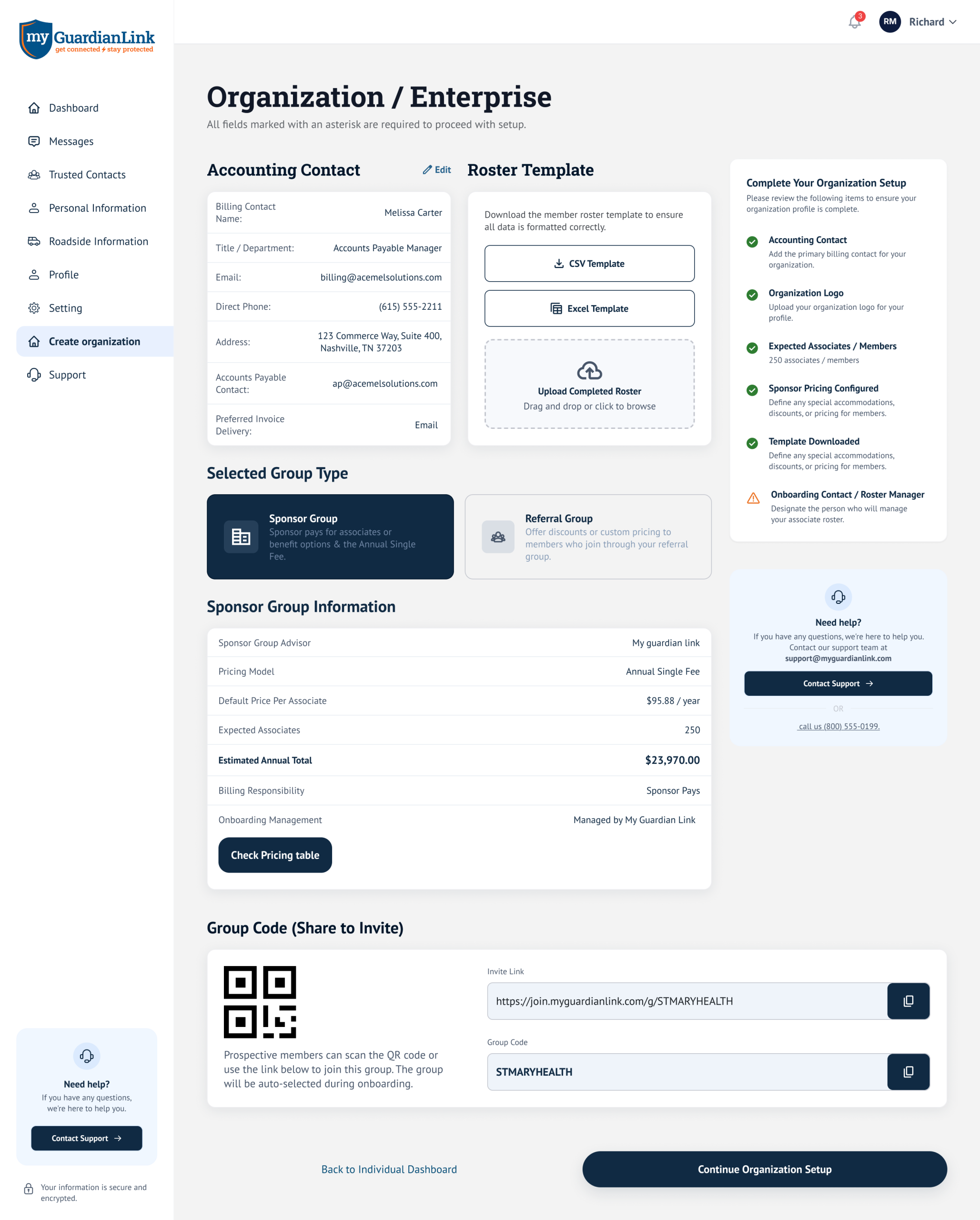
Create a Sponsor Group by uploading a list of employees or associates. My Guardian Link helps notify them for onboarding, and associates can join using the QR code, invite link, or group code.
Start as a current user, even on the free plan.
Upload a list of employees or associates.
We notify your associates to log in and create their own accounts.
Associates can join using the QR code, invite link, or group code.
An employee benefit that shows your people they are valued, protected, and never alone.
This is what it looks like in the Organization Portal.
An employee benefit that shows your people they are valued, protected, and never alone.